
Microsoft Authenticator is experiencing issues ensuring the integrity of accounts.
Because of this it is important to move any non-Microsoft two factor authentication codes out of Microsoft Authenticator.
This guide contains basic information for migrating to another two factor authentication app. You can download a PDF copy of this guide from https://guides.ajas.zip/ms-auth-migrate-pdf
1. Microsoft Authenticator
Microsoft Authenticator is experiencing issues ensuring the integrity of accounts.
Because of this it is important to move any non-Microsoft two factor authentication codes out of Microsoft Authenticator.
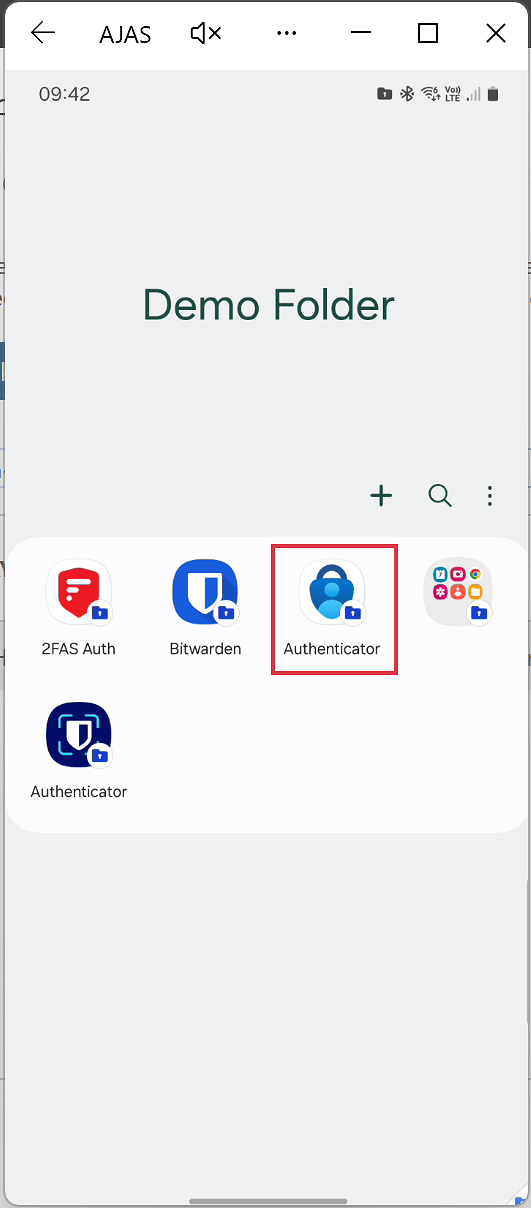
Microsoft Authenticator (highlighted) can be identified as a blue padlock with a person inside on a white background
2. Find accounts you need to re-set up 2FA on
You will need to re-set up 2FA for all accounts you currently have in Microsoft Authenticator EXCEPT for Microsoft Accounts.
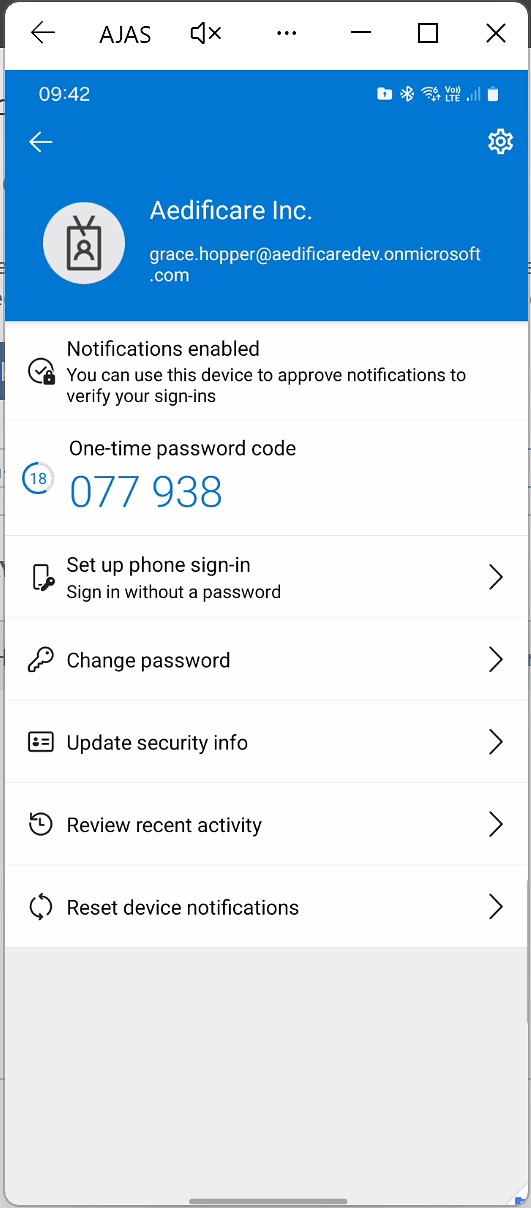
Microsoft Accounts can be identified by the lanyard icon.
Microsoft Accouts
Microsoft Accounts should remain in Microsoft Authenticator. DO NOT remove them or you won’t be able to log in

3. Microsoft Accounts
If you are unsure if an account is a Microsoft Account, click on the account to open it. If you see several possible actions similar to the screenshot it is probably a Microsoft Account.
4. Add a new Authenticator app to each service
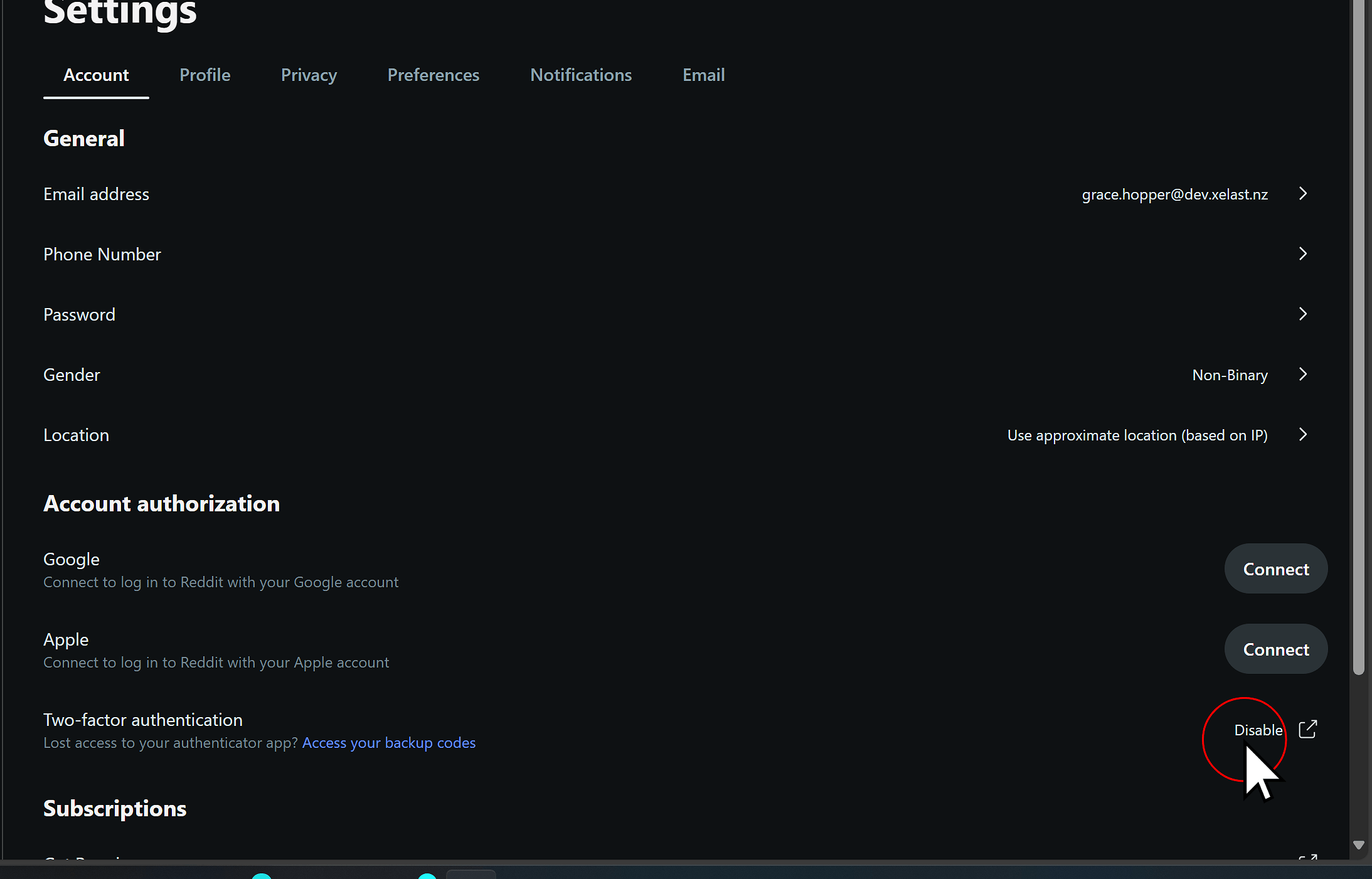
For each service, you will need to log in and find the two factor authentication settings. This will typically be located in your profile -> Settings -> Security.
In some sites you will be able to add an additional authenticator app. In others you may need to disable and re-enable two factor authentication
5. 2FAS
These steps apply to setting up 2FAS.
You can download 2FAS here:
- Android: https://play.google.com/store/apps/details?id=com.twofasapp
- IOS: https://apps.apple.com/us/app/2fas-auth/id1217793794
Once you have downloaded 2FAS you will be guided through a short tutorial.

5.1. Set up backups
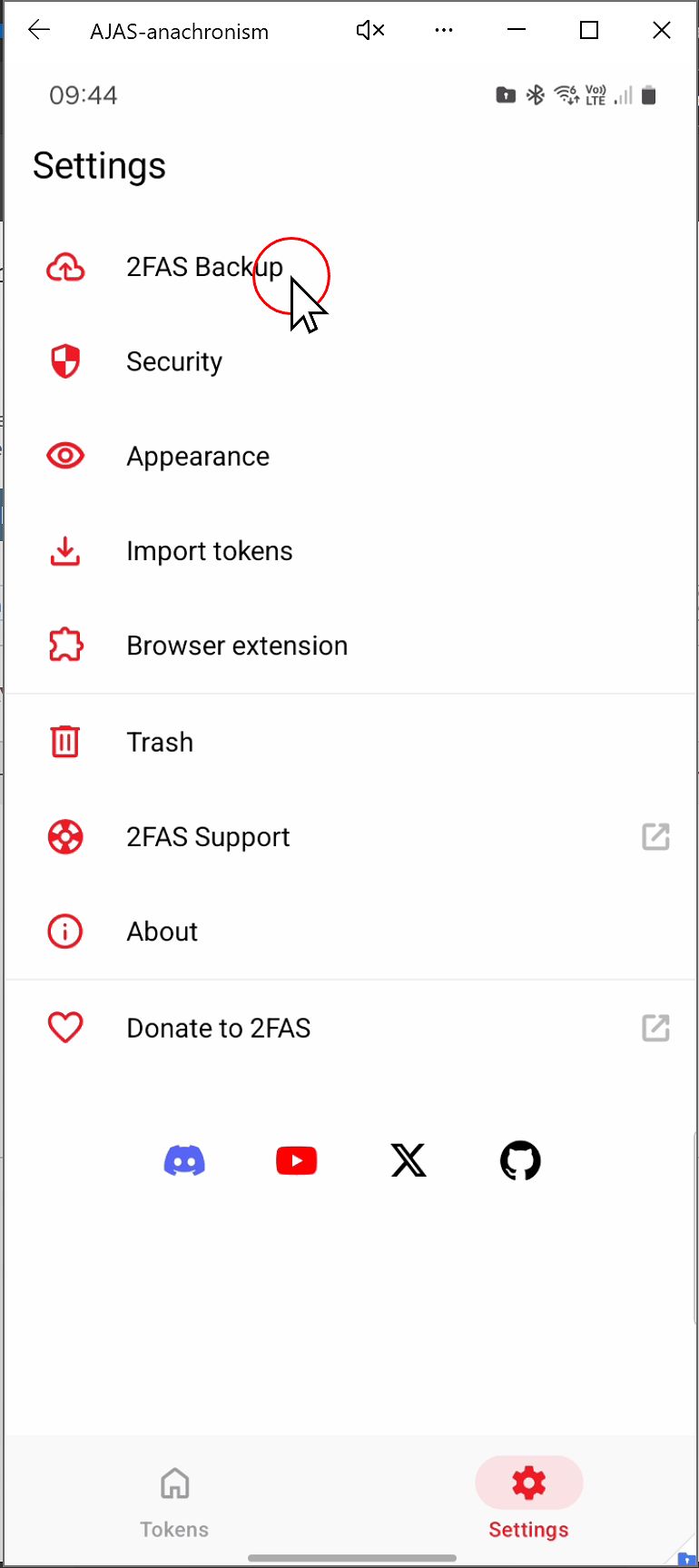
Once the tutorial is complete, go to settings
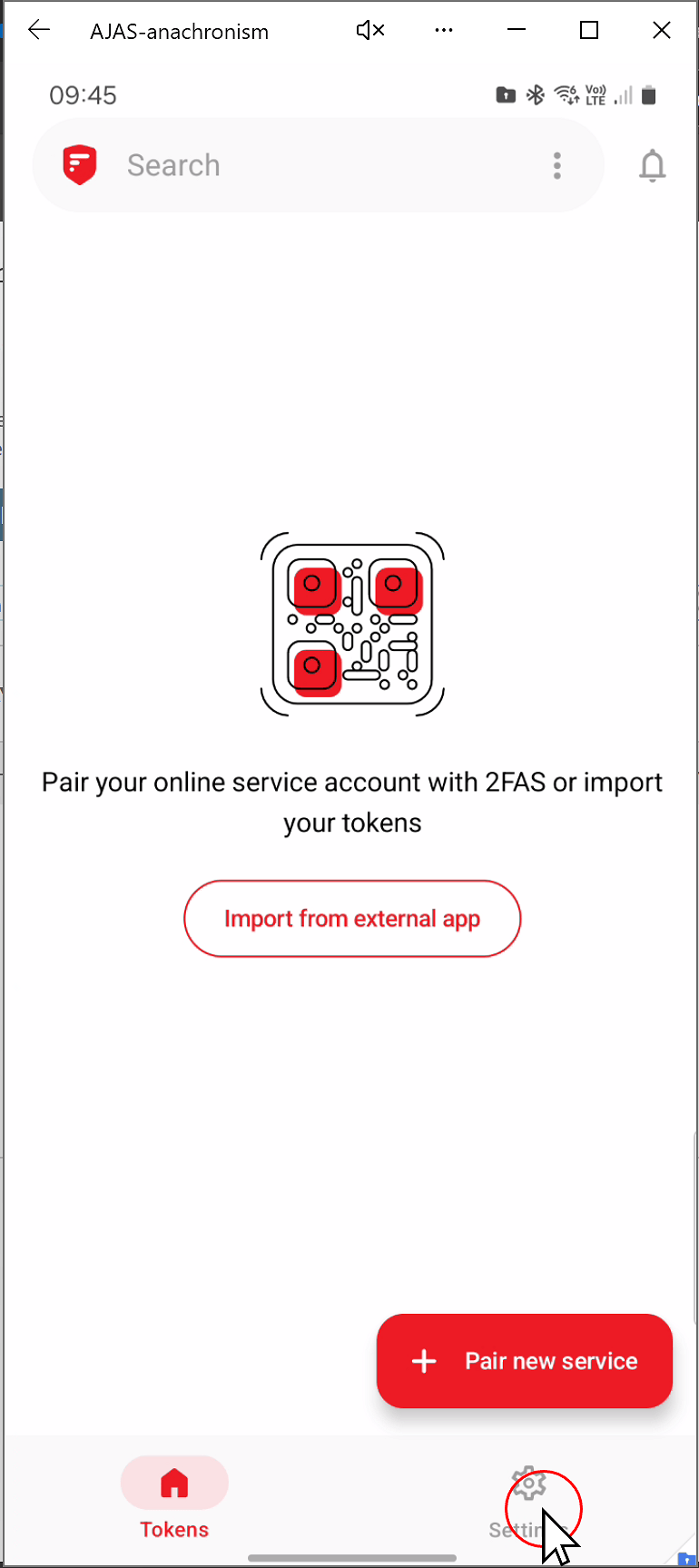
5.1.1. Click “2FAS Backup”
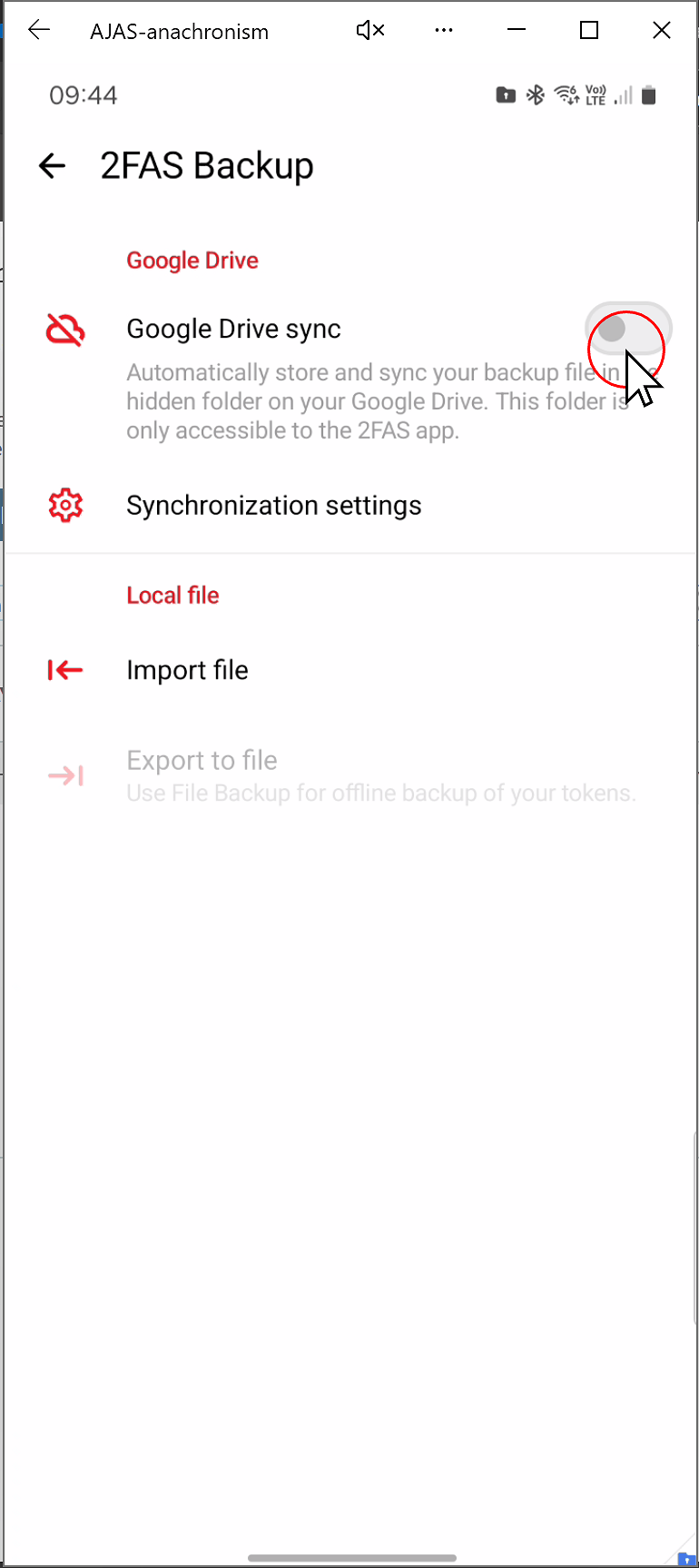
5.1.2. Enable Backup
Make sure backup is enabled. If you are using IOS, backup will be via ICloud. If you are on Android, backup will be via Google Drive.
You may be asked to set up a backup password. If you choose to do so your backup will be encrypted. DO NOT LOSE THIS PASSWORD or you will not be able to restore your backup. Alternatively click to skip setting up a password.
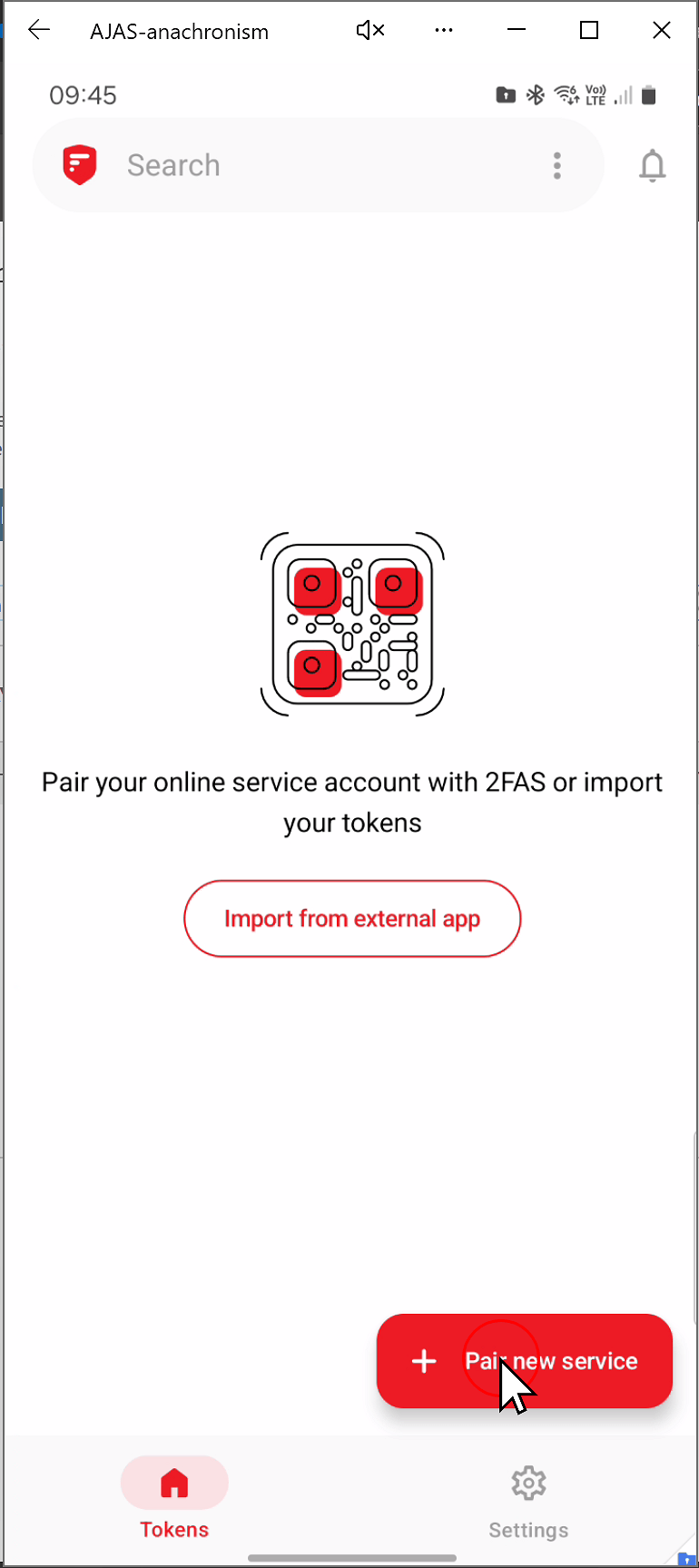
5.2. Add your account
From the main screen click “Pair new service”
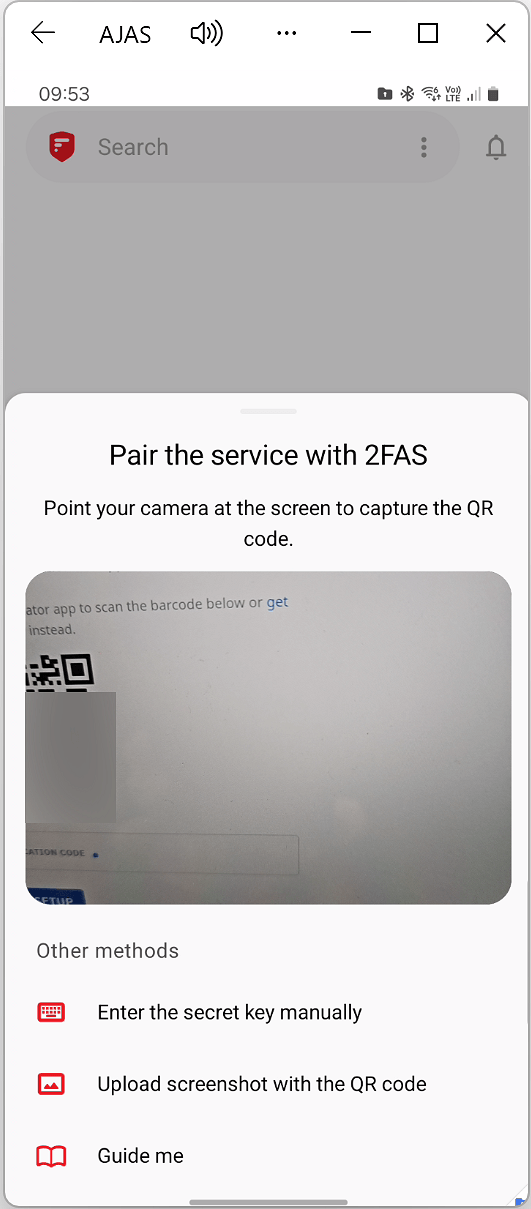
5.3. Scan the QR code given to you by the website you are trying to set up two factor authentication for
5.4. Enter the code into the site
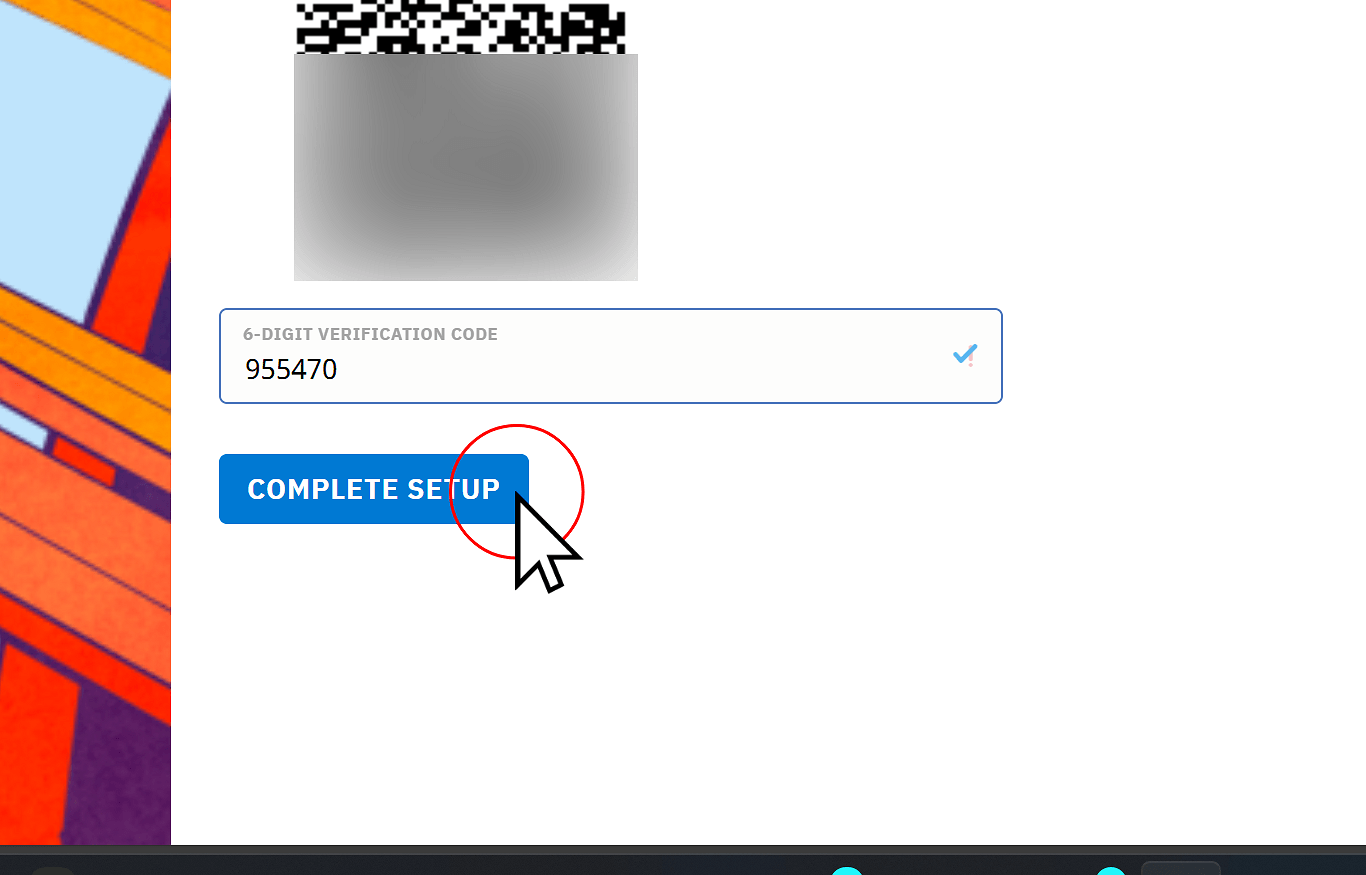
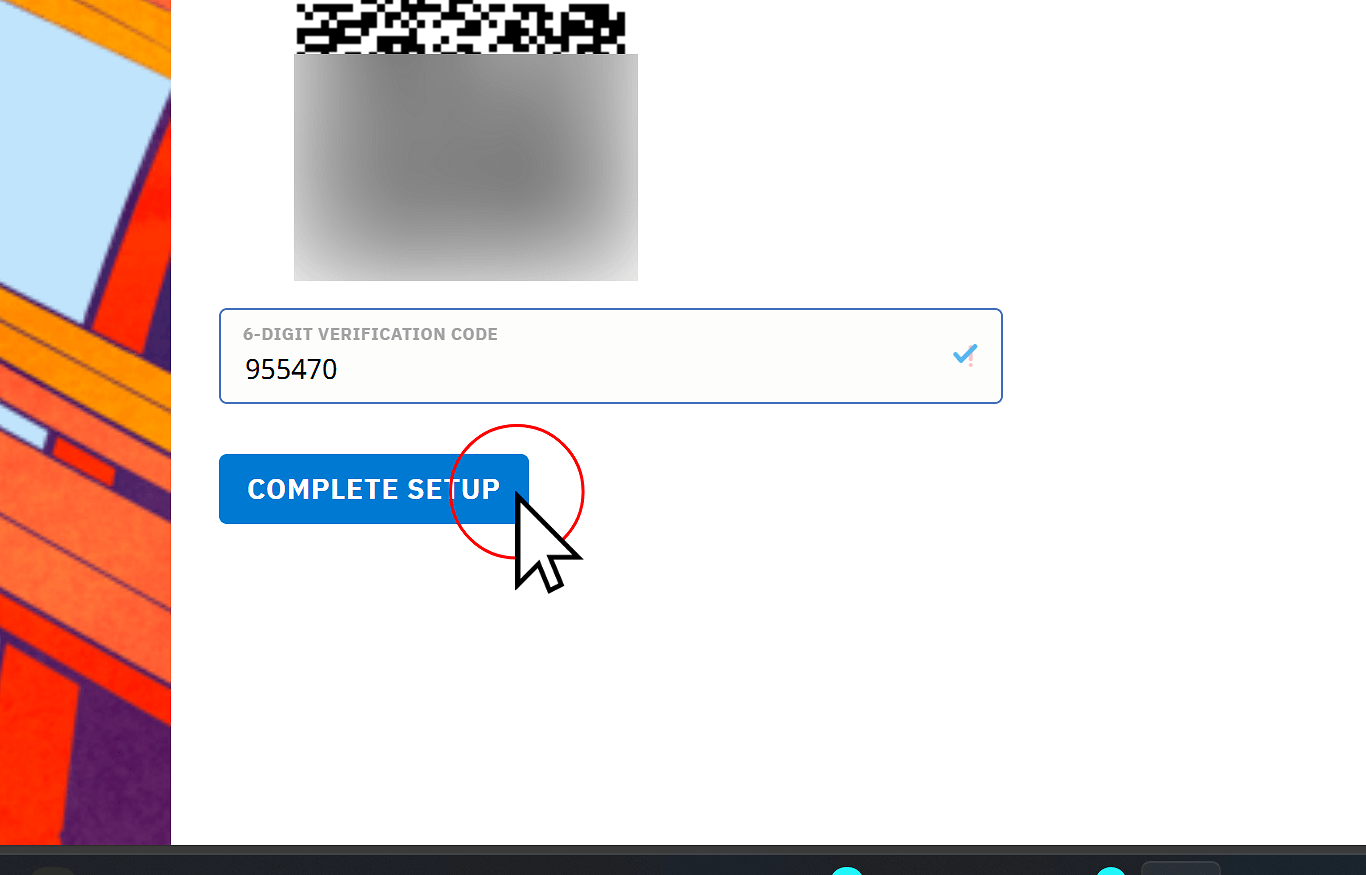
Most sites will ask you to confirm the two factor authentication token by entering it into the site
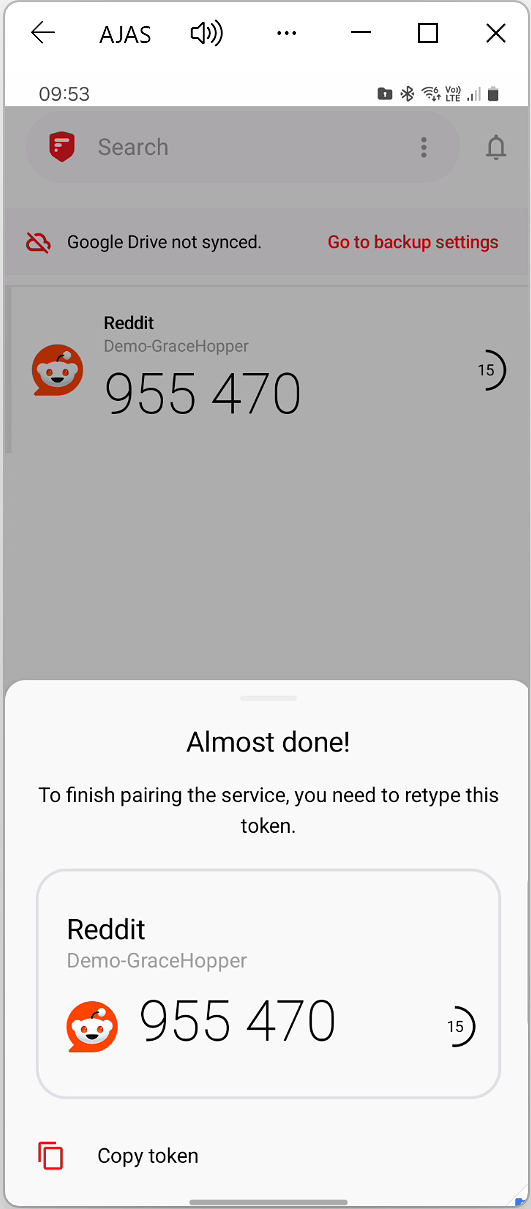
5.4.1. Confirm the token
6. Bitwarden
Paid account required
To use Bitwarden as your two factor provider you will need a paid Bitwarden account (most people Alex has set up an account for).
If you are unsure whether your account is paid, check with Alex.
These steps apply to setting up Bitwarden.
You can download Bitwarden here:

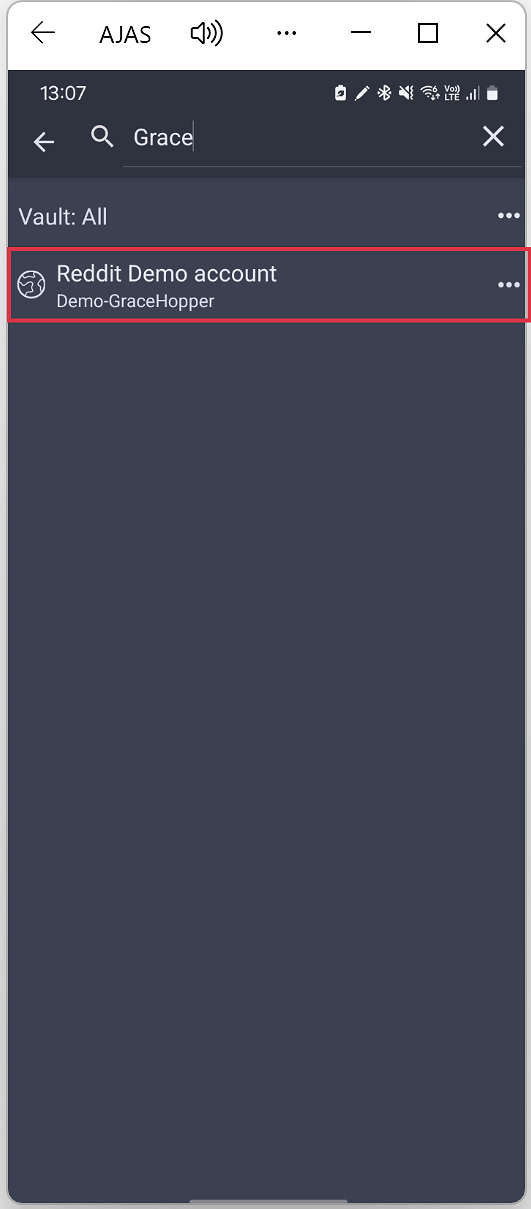
6.1. Find an entry
To add a two factor code to bitwarden you will need an entry. You can either search for an existing one, or create a new entry.
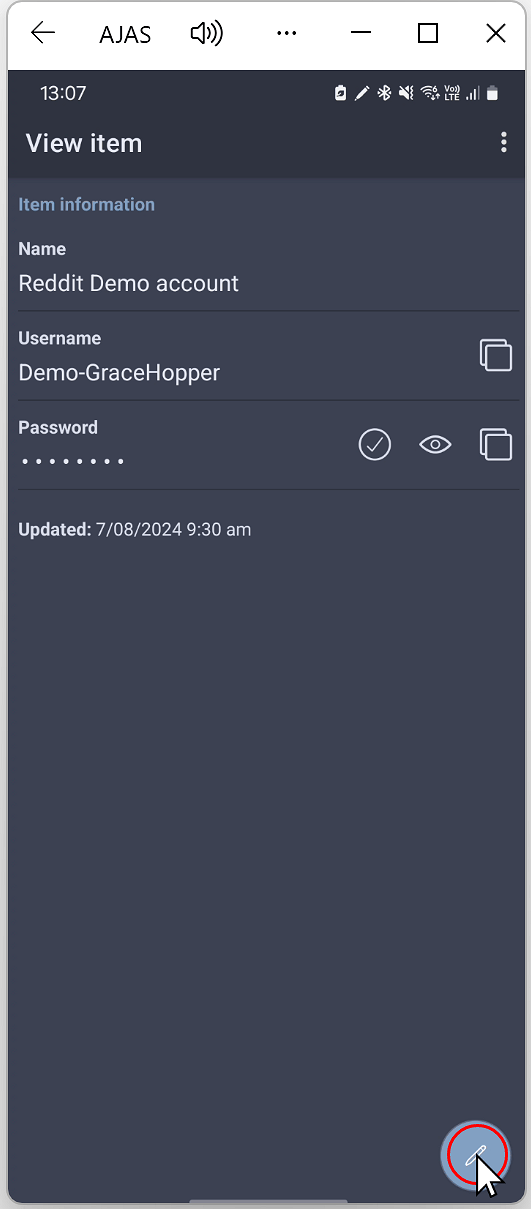
6.2. Edit the entry
If the entry opens into “view” mode, click to edit it.
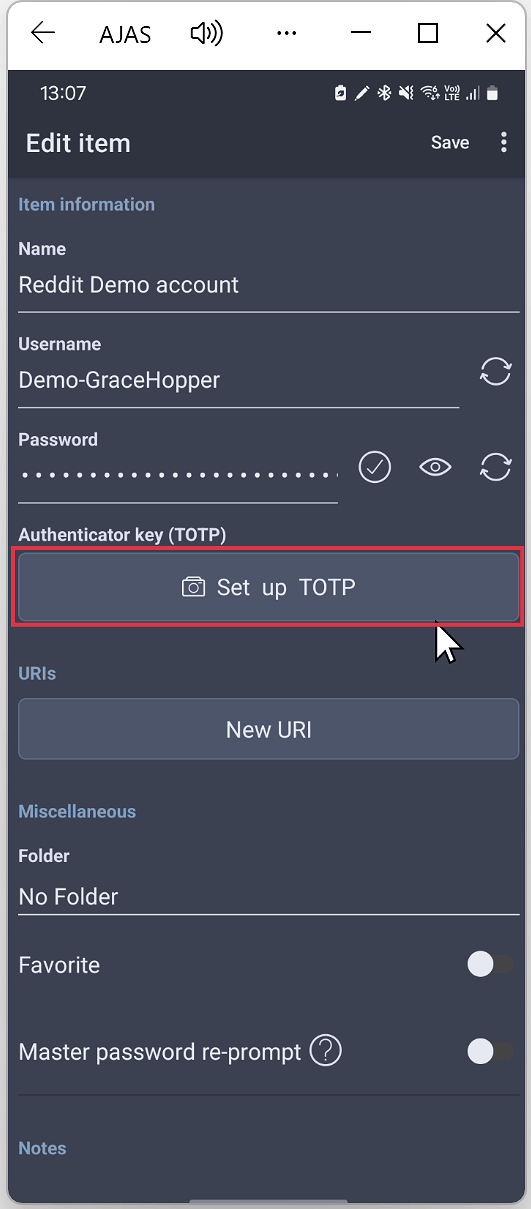
6.3. Click “Set up TOTP”
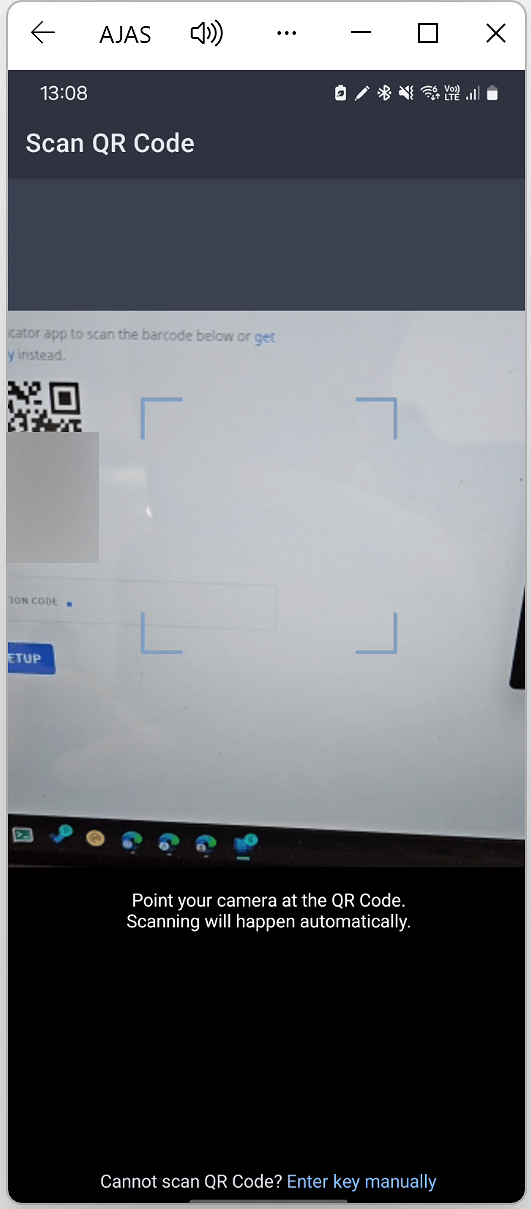
6.4. Scan the QR Code
Your device will open a window to scan the QR code provided by the website
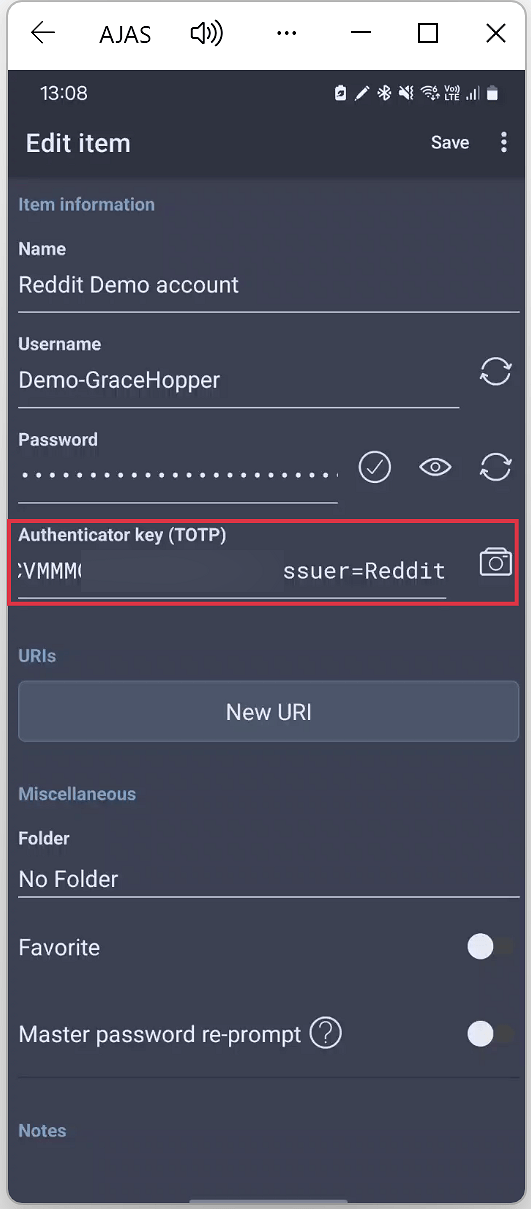
6.5. Token Scanned
The token’s secret will appear in Bitwarden’s Textbox. Be careful not to edit or change this value
6.6. Click “Save”

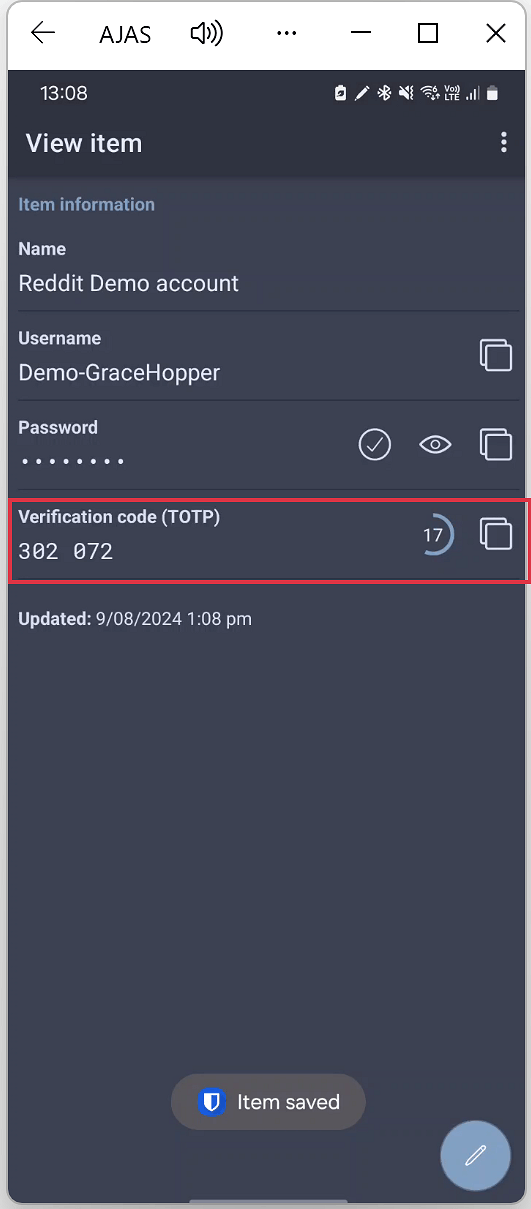
6.7. Code ready
Your two factor code will appear in the Bitwarden Entry
6.8. Copy Confirm the token
Most sites will ask you to confirm the two factor authentication token by entering it into the site
7. Bitwarden Authenticator
Setup steps for this app are not currently vailable
This is not Bitwarden
Bitwarden Authenticator is a seperate app from Bitwarden. If you use Bitwarden as your password manager, the accounts and tokens are kept seperate.
These steps apply to setting up Bitwarden Authenticator.
You can download Bitwarden Authenticator here:

8. Tidying up
Account Deletion
Do not delete any tokens from the Microsoft Authenticator App until you have migrated the token to a new app, or you have disabled 2FA for the account.
Only once you have added the tokens to a new app should you delete the account from Microsoft Authenticator. If you are unsure, leave the account in Microsoft Authenticator and use the new app from this point forward